 FileMagicHub Team
Easy Ways to Merge PDF Files on Windows, Mac, and Mobile
Learn simple and quick ways to merge PDF files on Windows, Mac, and mobile devices using built-in tools and free online converters.
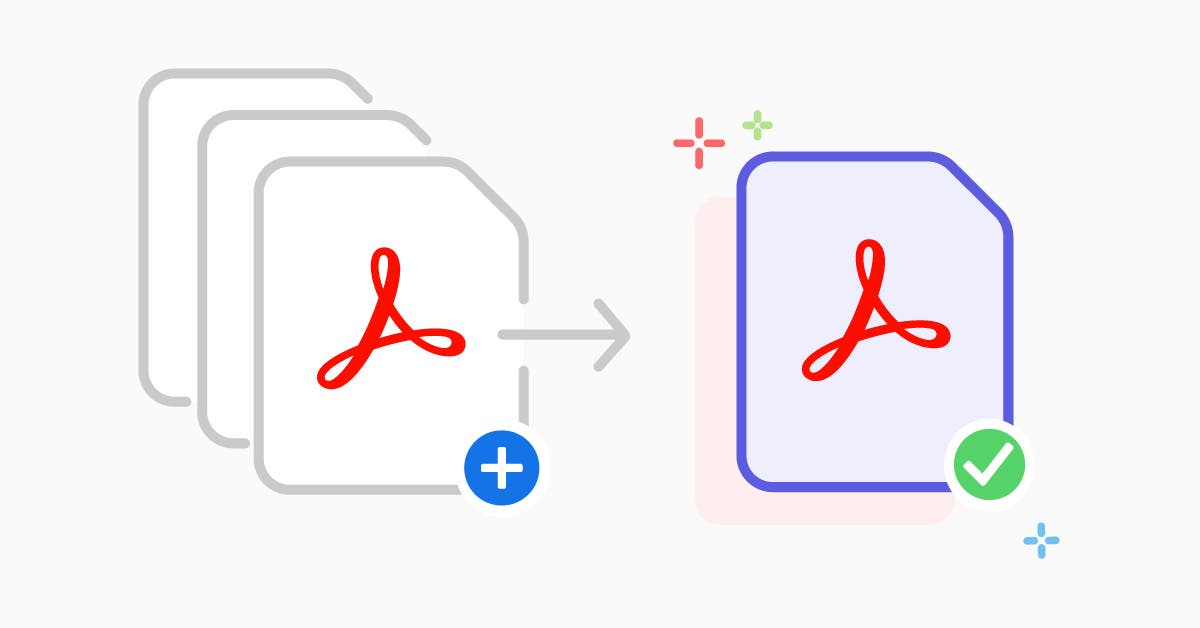
One of the most common formats for sharing documents, forms, and reports is in a PDF format, and users often need to combine many PDFs into one document for school assignments, business reporting, and personal projects. Combining PDF files may seem like a specialized process, but it is actually very easy to do! Here, we will show you step-by-step how to combine PDFs on Windows, Mac, and mobile devices. All tools described are free and simple to use!
Why Merge PDF Files?
Combining PDF files can be incredibly useful for organizational purposes and time-saving. Instead of sending a series of attachments, you can simply merge everything into one cohesive document. This can be beneficial for:
Merging invoices or receipts
Merging project reports or research papers
Organizing scanned documents
Submitting assignments or official forms
Now, let’s consider how you can merge PDFs quickly and easily on different platforms.
How to Merge PDF Files on Windows
Windows users can easily merge PDFs utilizing the built-in features or free software. In this article, we will cover two popular methods of merging PDFs.
1. Using a PDF merge tool like File Magic Club
File Magic Club has a free online tool so that you can upload as many PDFs as you want and merge them into one PDF in seconds.
Procedure:
Go to the File Magic Club site.
Click on the merge PDFs tool.
Upload all of the PDFs you wish to combine.
Organize the files in the order you want them to appear.
Click "Merge Now" and download your new PDF file.
It is quick and safe, and all the tools are online, so it is not necessary to install any software.
2. Using the Microsoft Print to PDF
If you are a fan of offline options, Windows has a built-in "Print to PDF" feature.
Procedure:
Open the first PDF file using any PDF reader.
Press Ctrl + P (Print).
Select Microsoft Print to PDF in the printers list
Add more pages or files as wanted, or as long as the documents are reasonably sized.
Save the new document as a PDF.
This option works well for small PDFs, but it doesn't retain all the formatting perfectly, so generally an online method is easier.
How to Merge PDF Files on Mac
Mac computers are equipped with Preview, a free application that is built in and makes merging PDFs an easy process.
How to do it:
Open the first PDF in Preview.
Then go to View > Thumbnails to show all the pages.
Drag and drop the second PDF into the sidebar.
Arrange the pages how you want.
Finally, File > Export as PDF will create your new combined PDF file.
Preview is an easy and reliable option that does not require additional software to manage documents quickly.
How to Merge PDF Files on Mobile
Merging your PDFs on a mobile device is just as simple with free apps and web tools.
1. Use File Magic Club on Mobile
File Magic Club’s website works great on any smartphone. Follow these steps:
Open your mobile browser on your smartphone and type in the URL for File Magic Club. It should work well in any mobile browser.
Then, scroll down to the Merge PDF tool listed below.
Now, you can either upload from your phone storage or the cloud (e.g., Dropbox).
Finally, you will want to tap on Merge PDF and then download the final PDF.
The best part is that you do not even need to download any app, and it is really quick on both Android and iPhone.
2. Use Mobile Apps
If you prefer the mobile app, tools such as Adobe Acrobat Reader or Smallpdf offer mobile apps. However, they may limit free access or require sign-in, which is why we tend to prefer web tools.
Tips for a Smooth PDF Merge Process
To help make merging easier, consider the following suggestions:
Check file order: Be aware of the order of your files; merge PDFs in the file order you need.
Keep file sizes small: Larger PDFs take longer to upload/download.
Use trusted websites: Be sure to only merge files using trusted sites like File Magic Club.
Preview before saving: It's a good idea to check the merged files to ensure all pages appear correctly.
Common Problems and Quick Fixes
1. Unable to Upload File
If you are unable to upload a file, you can attempt to upload a smaller file or refresh the page you were on. Another reason could be the speed of your internet, which can at times lead to upload errors.
2. Pages not in the Right Order
As long as the online tool allows, you can simply drag and drop and change or rearrange the page order before merging. This is the case for File Magic Club.
3. Formatting Issues
If you notice that fonts, images, or other items look incorrect after you have merged the documents, try to export the document again from your online tool.
What is the benefit of using online PDF merging tools?
Online tools, such as File Magic Club, help you avoid installing heavy software or configuring complex settings. They are also compatible with any device, allow easy drag-and-drop file upload, and return results in seconds. You also don't have to worry about file security, because your documents will be secure and deleted from the web processing sites once completed.
Conclusion
Combining files into a single PDF is easier than ever, regardless of if you're on a Windows PC, Mac, or your mobile device. With tools such as File Magic Club, for instance, combining documents takes only a couple of clicks, and you do not have to worry about needing to install software, and there are no file size restrictions! It's fast and a great tool for busy students, workers, or anyone who uses digital documents.
Test out File Magic Club today!
The File Magic Club offers a free PDF service for document management. Quickly combine, convert, split, or compress files into PDF easily and securely in one place.
Go to File Magic Club and start handling all of your PDF tasks easily!
FileMagicHub Team
Expert team at FileMagicHub, dedicated to providing the best file management tools and productivity tips. We help millions of users streamline their digital workflows.